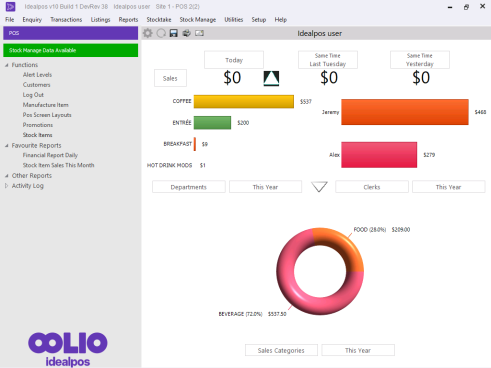
When the Pocket Stock app has been used to perform a Stock Receive and the data has been uploaded to Idealpos, it will be available for processing.
Idealpos will display a message on the Back Office that there is data available.
To access the Stock Received data uploaded by Pocket Stock, click on the "Stock Manage" menu at the top of the Back Office screen.
The type of data that is available to process will be designated by an icon beside the menu option, in this case, Process Stock Received.

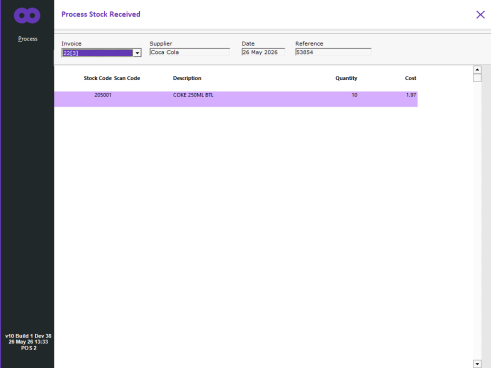
A new window will open showing you the details of the invoices from the device.
You have the choice to select which invoice you want to process.
Press the ‘Process’ button to send the details to the receive window.
The Stock Received window will open where if required you can edit details about the invoice.
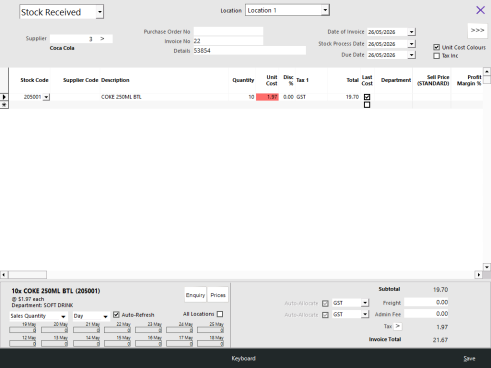
From this point, you can ‘Save’ the invoice to Process it later.